







































Follow These 9 Steps to Be a Gmail Ninja
Jun 09, 2014 19:50
You use your email every day, and it is about time you learned how to save yourself some time and learn the ins and outs, the hacks and the easter eggs hidden in them. Gmail has plenty. Here are a couple of tricks you should know:
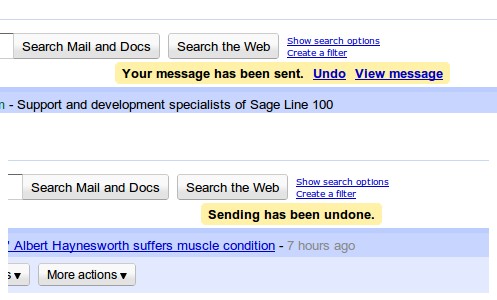
1. Click the gear in the top right and select Settings.
2. Click to “Labs” and search for the lab feature entitled “Undo Send.” Enable it, and then click “Save changes.”
3. Still in “Settings,” go to “General,” and scroll down to the “Undo Send” section. Enable it there too.
2. Enable time-saving keyboard shortcuts:
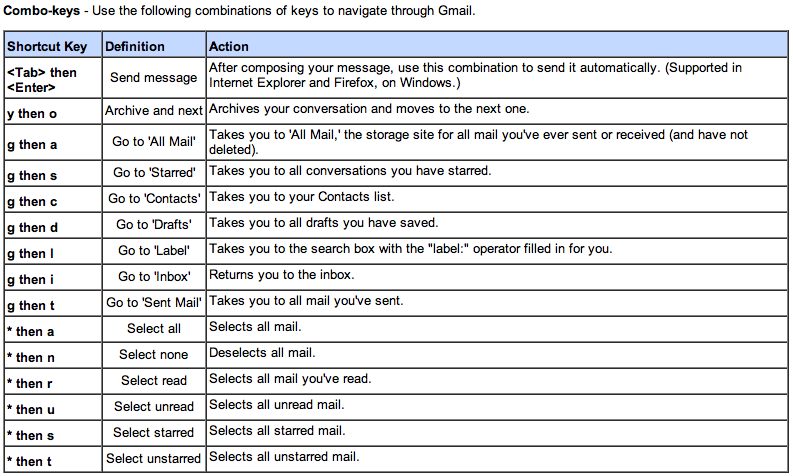
1. Click the gear in the top right and select Settings.
2. Find the “Keyboard shortcuts” section and select Keyboard shortcuts on.
3. Click Save Changes at the bottom of the page.
[More here]
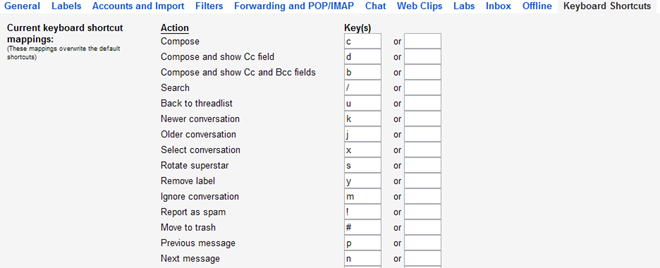
Once you’ve enabled your shortcuts:
1. Click the gear in the top right and select Settings.
2. Click “Keyboard shortcuts” at the top right of the page.
3. Change the shortcuts to whatever you want.
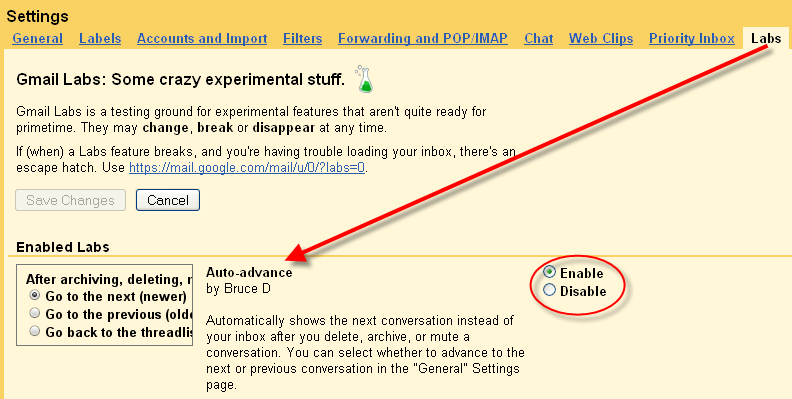
Auto-advance shows your next conversation after you delete, archive, or mute a conversation. Instead of going back to the inbox every time, you'll automatically go on to the next one.
To enable this feature, just:
1. Click the gear in the top right and select Settings.
2. Click the “Labs” section in the top middle of the page.
3. Search for “Auto-advance” in the search bar.
4. Click the “Enable” radio button.
5. Scroll to the bottom of the page and click “Save Changes.”
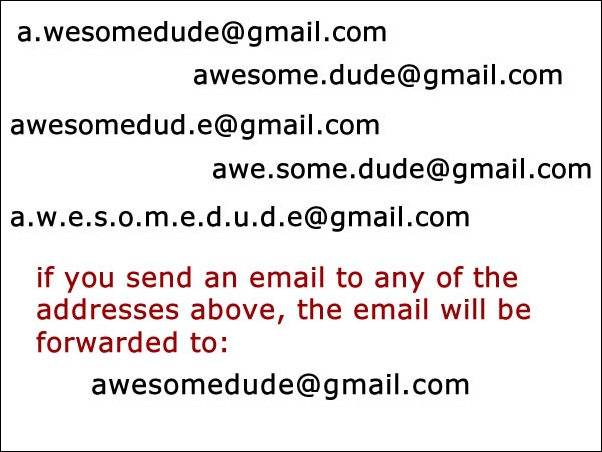
5. Remember: your.name@gmail.com = y.o.u.r.n.a.m.e@gmail.com. The dots are lies.
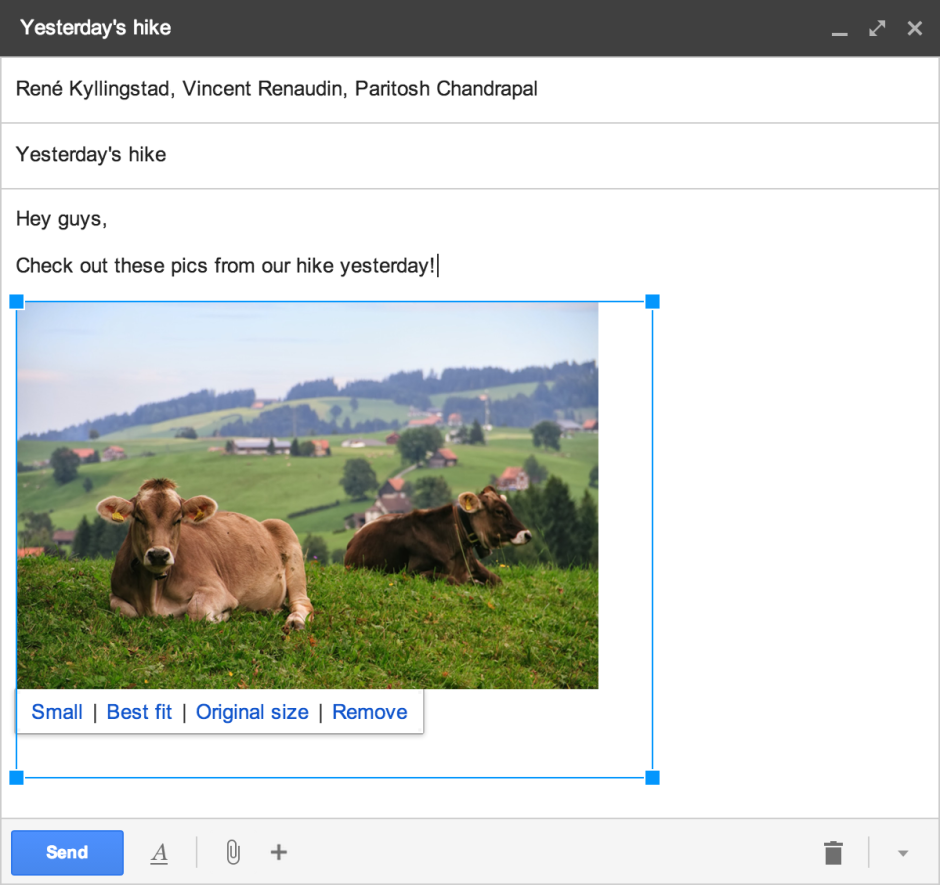
You can drag and drop. Or right click on the image and select "Copy Image". And then hit Ctrl V to paste it in the body of the email.
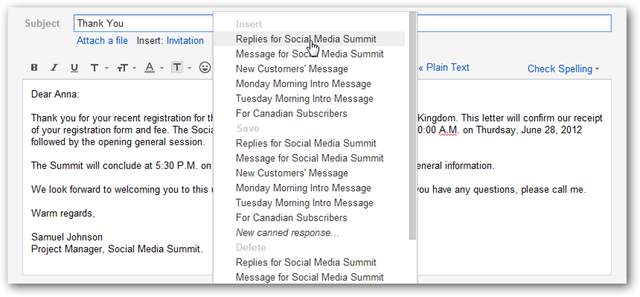
Go to “Labs,” then search for “Canned Responses” and enable it.
Go to “Compose” and write the canned email. Then, just below the “To” line, click “Canned Responses,” and go down to “Save.” Click “New Canned Response,” and give that email a title.
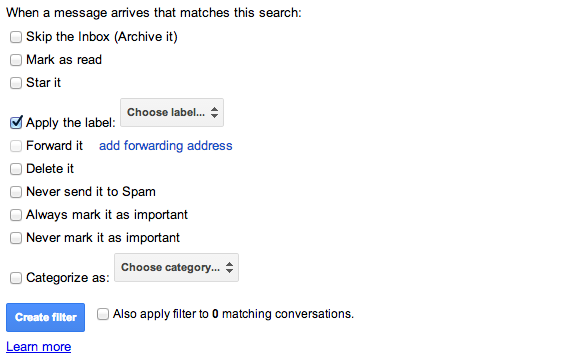
1. Go to your filters (click the gear, click settings, then click filters). Scroll to the bottom and click “Create a new filter.”
2. Under “Has the words,” write “Unsubscribe,” then hit “Create filter with this search.”
3. Mark “Skip the inbox (Archive it).”
4. Mark “Apply the label” and create a label called “read/review” or something similar.
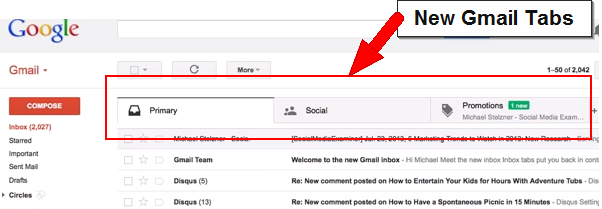
Gmail's tabs are pretty useful. But you have to configure them to make the most out of it. It is a good way to separate promotions from real email, and whatever endless notifications you get from Facebook, Twitter, Pinterest and more.
1. Undo accidental emails:
1. Click the gear in the top right and select Settings.
2. Click to “Labs” and search for the lab feature entitled “Undo Send.” Enable it, and then click “Save changes.”
3. Still in “Settings,” go to “General,” and scroll down to the “Undo Send” section. Enable it there too.
2. Enable time-saving keyboard shortcuts:
1. Click the gear in the top right and select Settings.
2. Find the “Keyboard shortcuts” section and select Keyboard shortcuts on.
3. Click Save Changes at the bottom of the page.
[More here]
3. Customize those keys to be anything you want:
Once you’ve enabled your shortcuts:
1. Click the gear in the top right and select Settings.
2. Click “Keyboard shortcuts” at the top right of the page.
3. Change the shortcuts to whatever you want.
4. Use the “Auto-Advance” feature to speed up your email management:
Auto-advance shows your next conversation after you delete, archive, or mute a conversation. Instead of going back to the inbox every time, you'll automatically go on to the next one.
To enable this feature, just:
1. Click the gear in the top right and select Settings.
2. Click the “Labs” section in the top middle of the page.
3. Search for “Auto-advance” in the search bar.
4. Click the “Enable” radio button.
5. Scroll to the bottom of the page and click “Save Changes.”
5. Remember: your.name@gmail.com = y.o.u.r.n.a.m.e@gmail.com. The dots are lies.
6. Insert images directly into an email:
You can drag and drop. Or right click on the image and select "Copy Image". And then hit Ctrl V to paste it in the body of the email.
7. Send canned responses for repetitive emails:
Go to “Labs,” then search for “Canned Responses” and enable it.
Go to “Compose” and write the canned email. Then, just below the “To” line, click “Canned Responses,” and go down to “Save.” Click “New Canned Response,” and give that email a title.
8. Filter out spam and promotions:
1. Go to your filters (click the gear, click settings, then click filters). Scroll to the bottom and click “Create a new filter.”
2. Under “Has the words,” write “Unsubscribe,” then hit “Create filter with this search.”
3. Mark “Skip the inbox (Archive it).”
4. Mark “Apply the label” and create a label called “read/review” or something similar.
9. Make the most out of your tabs!
Gmail's tabs are pretty useful. But you have to configure them to make the most out of it. It is a good way to separate promotions from real email, and whatever endless notifications you get from Facebook, Twitter, Pinterest and more.